Showing posts with label math. Show all posts

Monday, November 30, 2015

FSU - UF Football Rivalry Stats

Rivalry week is behind us and the trash talk is still going strong. RIP in peace my news feed - and my team won.

There's a bit of chatter about the all-time series record that they are indeed winning, but I wanted to look a bit further into it.

It turns out that, they aren't just leading the stats, they are pretty damn far ahead. However, the bulk of this comes from the early days of football at Florida State - but is it ridiculous to quote statistics from the 1950s and 60's? I'd definitely say, "Yes and no."

I don't mean to be any more of a revisionist by asking this question than say a team whose only score was produced by the defense. Let's just look at some numbers.


I've shown my work in case you want to review. Holler if I missed anything - I haven't double checked it.

If we try to identify a "Current Era" to measure the teams against each other, I found that the two teams are unbelievably close competitors.

Win/Loss Records


Looking at the all-time standings, UF took an early lead, and jumped ahead in two streaks in 1968-75, and again in 1981-86. Across all time, UF is in a commanding lead, sitting 10 wins ahead of FSU with a record of 34 wins, 24 losses, 2 ties, and one Choke at Doak.

Since I was born in '83, most this sounds pretty thin - especially coming from kids who weren't even alive when the Simpsons was a well established cult classic.

Let's try to start in somewhat more recent times, like from the beginning of the Bobby Bowden era, in 1976.


Despite 4 decent runs on both sides, FSU leads the series by 3 wins since 1976.

To be somewhat fair, let's pick another circumstance to change balance this investigation. I'll try again at the beginning of the Spurrier era, starting in 1990 - at least it's closer to the birth date of most college kids now.


No change. FSU still leads the series by 3 games.

Yeah, I agree it's bullshit to discount 15 losses and a tie, but we're just examining numbers here. Also, I don't see how the argument that, "games played in the 1950s and '60s are more relevant," holds any more weight than, "current history is more relevant to reality."

Let's take at another metric to see what's going on across multiple games.

Running Score Distribution

Example: Starting at 0, if UF wins with a score of 14-7, UF is awarded 7 points, and FSU begins with -7 points.


Across all time, FSU is just dominated by UF who ran up a score of 200 additional points over FSU - mainly between the first game in 1958 and the year before Bobby Bowden arrived. Good job, our collective grandparents who probably weren't associated with either school!

Let's see what has happened in more recent history.


Looking at the Bowden era to present, the overall score between the two teams puts UF in the lead by 3 points. THREE!

How about the Spurrier era to present?


It's a goddamn tie! Since 1990, FSU and UF have scored the same amount of offsetting points.

Someone please check my work. That's weird.

Conclusion

Okay, I admit rivalry isn't rivalry without context of history. I'm confident that the next few seasons are looking fierce for my Alma mater, and I don't doubt the ability to overcome those very early defects in the coming years. However, it's fair to say both teams have had some incredibly strong runs in recent history, and these quick illustrations have a surprising degree of balance.

Tuesday, May 1, 2012

Impossible Khan Academy Question

KhanAcademy.org is very cool.  This Web site offers lessons and exercises on a wide variety of mathematics, science, and other subjects.  I am going through and playing with some exercises in hopes of honing my advanced statistics, trig, and calculus skills.

I came across this scuba diving example that uses simple arithmetic to solve.  The math is correct, but the situation is virtually impossible:
Daniel was scuba diving 28 meters below sea level when he spotted a beautiful fish below. To see the fish up close, Daniel dove 29 meters until he was level with the fish, staring into its eyes.
Where was the fish relative to sea level?
Answer: -57 meters

57 METERS DEEP!? Really? That's 187 feet!  Let's convert this situation to imperial units and interpret what is more likely ocurring:

Some BS open water diver isn't prepared for a deep dive and heads down to 92 feet on a ledge somewhere amazing for far too long time and gets narced out of his mind since he's breathing air instead of Nitrox.  In a hallucination he sees something and decides to dive another 95 deeper and immediately dies from running out of breathing gas.
How deep was Derpo when he died?
Answer: Derpo died at -187 feet

The follow is my nerdy response when I reported a problem for this question:


Greetings,

Although the math is correct, there is a problem with the unrealistic units of depth that are chosen in this example.

A basic recreational scuba diver - who would be interested in observing and following fish rather than performing industrial or scientific work - is generally limited to diving within 100 feet from the surface (≈30.5 meters).  Beyond this depth a number of physiological factors limit a dive without having highly technical training and gear; including nitrogen narcosis, oxygen toxicity, and an elevated risk of decompression illness.

The question states that a diver finds a fish at 28 meters below the surface (92 feet), and descends another 29 meters (95 feet) below this, giving a maximum dive depth of 187 feet.  This diver will surely suffer narcotic effects from the high partial pressure of nitrogen unless he or she were to switch to an anoxic breathing gas that is a specific mixture of oxygen, nitrogen, and helium (referred to as "heliox" or "trimix") which cannot otherwise sustain life at the surface.

Beyond physiological limitations, it is technically plausible however unlikely that a diver will encounter conditions where visibility beyond 80-90 feet of vertical visibility.  In the case that a diver could view an object that lies an additional 95 feet below in the water column with any definition, it is unlikely that the object will appear to be anything more than a dark shadow, as water quickly absorbs much of the visible light spectrum.

Without significant and expert dive planning in perfect conditions, this description of a scuba dive is virtually impossible.  Simply switching the units of depth from meters to feet would make this a far more plausible, and realistic example.

Best regards,
 - Derpington

Thursday, May 27, 2010

Formatting Spreadsheet Cells with Unit of Measure

I'm working with data imported from a GPS unit. The Altitude field is reported by a value with the unit of measure tacked on the end (below).


The extra characters after the numeric value need to be removed if this value is going to be used in a database or a spreadsheet.  As of now it's being stored as a text value and is not as useful for calculations, summarizations, or sorting.

The general idea is to use only a certain amount of text from the left side of the Altitude values, however there are various lengths of numbers. "11" and "-4" are both composed of two characters, but "2" is made up of one character.

The best course of action is to remove those last three characters from each value so it can be treated as an integer (or other numeric value).  The best way to do this is to combine two simple and powerful functions into a spreadsheet formula.

Function SyntaxDescription
Length =LEN(text) Returns the length of a string including spaces. Text is the text (or cell) whose length is to be determined.
Left =LEFT(text, number) Returns the first character or characters in a text string. Text is the text (or cell) where the initial partial words are to be determined. Number (optional) is the number of characters for the start text. If this parameter is not defined, one character is returned.


Length example:
The length function returns the number of characters that are present in a cell


Now that we know how many characters are found in each individual record, we can create a formula that will pull just the specific numbers we want using the Left function.

Combining with the Left function:
The following formulas return only a certain number of the Left most characters from the Altitude field.  That number is calculated by subtracting 3 (a single space and "ft") from the total length of the Altitude field.


Sometimes Google Docs treats this text field as a number already, so the formula doesn't need to include the -3 (i.e. simply testing the =LEN(C2) formula returns 2 instead of 5).


The Right function is very similar to the Left function.  The Mid function, on the other hand, is used to report strings that do not begin on the ends of a cell, but rather when information begins closer to the center or more than one character away from the left most position. Check out the "Decimal Degrees to Degrees, Minutes, Seconds (DD to DMS):" section of my post on Angular Unit Conversion for an example.

Monday, April 5, 2010

Geometric Field Calculations

There are a number of common geometric field calculations that I use on a regular basis.  Calculating polygon area & primiter, linear/arc/path distance, or feature centroid coordinates are surprisingly simple to obtain and can prove to be very powerful information.

If you're working in a geodatabase, many of these will be automatically calculated and updated as features are edited, however these must be re-calculated using the Field Calculator when working with shapefiles.  Here's how:
  • Open a layer's attribute table
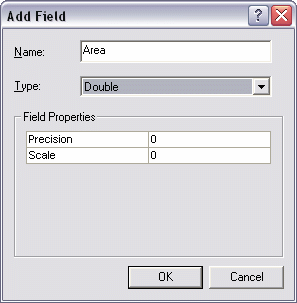
  • From the Options menu at the bottom of the attribute table window choose Add Field... if some kind of area/length/etc. field does not already exist.  
  • Name the new field and choose Double for its type.

    Again, if the layer is in a geodatabase, the SHAPE_AREA and SHAPE_LENGTH fields will be available and updated.  These fields will be present in a shapefile format if they were exported from a geodatabase coverage, but you will need to re-calculate the values.  Don't bother adding a new field if this is the case - just update the existing fields using the following steps
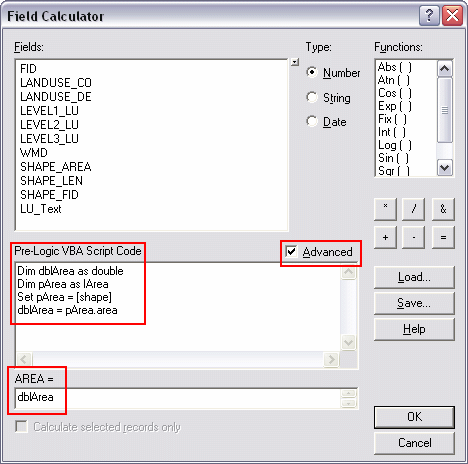
  • Right click on the appropriate field (of type Double) and choose Field Calculator
  • Check the Advanced option box
  •  Use the following code snippets to calculate the appropriate type of geometric information for each feature.  I'll calculate polygon Area for this example, however I can also calculate perimeter or centroids, etc.

    Paste the code (see below) in the Pre-Logic VBA Script Code box, and type the object (the variable that is created in the first line: in this case it's dblArea) in bottom most text box.  Click OK when finished
  •  That's it!
Below are code snippets for various types of geometric calculations.  Be sure to paste the corresponding object created in the first line (dblArea/dblPerimeter/etc.) into the text box at the bottom of the Field Calculator.

Area
Dim dblArea as Double
Dim pArea as IArea
Set pArea = [shape]
dblArea = pArea.area


Perimeter
Dim dblPerimeter as Double
Dim pCurve as ICurve
Set pCurve = [shape]
dblPerimeter = pCurve.Length


Length
Dim dblLength as Double
Dim pCurve as ICurve
Set pCurve = [shape]
dblLength = pCurve.Length


X-coordinate of a point
Dim dblX As Double
Dim pPoint As IPoint
Set pPoint = [Shape]
dblX = pPoint.X


Y-coordinate of a point
Dim dblY As Double
Dim pPoint As IPoint
Set pPoint = [Shape]
dblY = pPoint.Y


X-coordinate of a polygon centroid
Dim dblX As Double
Dim pArea As IArea
Set pArea = [Shape]
dblX = pArea.Centroid.X


Y-coordinate of a polygon centroid
Dim dblY As Double
Dim pArea As IArea
Set pArea = [Shape]
dblY = pArea.Centroid.Y


Read more in these selected ESRI's articles:
 - Making Field Calculations
 - The Field Calculator Unleashed

Wednesday, November 18, 2009

Angular Unit Conversion - DD, DMS, Radians

It's important to know how to convert back and forth between various units of angular measurement.

Degrees, Minutes, Seconds to Decimal Degrees (DMS to DD):

DD = Degrees + (Minutes/60) + (Seconds/3600)

If you put this in terms of a clock, where a degree equals one hour of time (and there are 360 hours in a complete cycle of a day), it becomes easier to understand how minutes and seconds work in relation to the degree. There are sixty minutes in an hour (or one degree), and also there are sixty seconds in a minute. Thus, 60 seconds times 60 minutes equals 3600 seconds in an hour (or in one degree of angular measurement). Now just add these together.


Note: When working with locations west of the prime meridian, longitude values may be represented with negative numbers (-84° in this case). The formula should use subtractions (-) instead of addition (+) (line 3), or the entire formula must be multiplied by -1 as a final step (line 4).  Note the "abs()" function which temporarily converts the negative value to a positive number so the addition signs can be used.  In short, be extra aware of your data and the formulas used to convert between these units.

Decimal Degrees to Degrees, Minutes, Seconds (DD to DMS):
This conversion is a bit more tricky because the minutes and seconds are combined and packed into the decimal.

For the DD value 30.443452º
  • Anything to the left of the decimal is the full degree value
    D = 30º
  • Multiply the decimal value by 60 to find the minutes. The value will be between zero and 59.999. The minutes value will be what is in front of the decimal again.
    M = 26' because 0.443452 * 60 = 26.60712
  • Multiply the minutes decimal value by 60 to find the decimal seconds value. Again, it will be between zero and 59.999, as there are 60 seconds in a minute. Decimal seconds are acceptable.
  • S = 36.4272" = 60 * 0.60712
To pull this off in a spreadsheet, create an intermediate "Calculate Minutes" field, which is referenced to build the Minutes and Seconds fields. Negative numbers require an additional step (see below).


Negative numbers will have a leading third character to deal with in front of the decimal. First, sort the dataset so these can be dealt with as a group. Change Degrees formula from =left(*Cell*, 2) to =left(*Cell*, 3) for all negative values. That's it.


DD to Radians to DD:

Radians are another unit of angular measurement, used most often in all but basic applications of geometry. So what is a radian?  It's the arc distance between two points on a circle where an angle intersects, equal to the circle's radius (Wikipedia). It's the unit of measure used to calculate a number of Excel formulas, so it's important to understand what it means, and at the very least how to use it.


DD to radians:


Or radians to DD: