Friday, October 23, 2009

Intro to Customizing ArcGIS Desktop, Toolbars, and Normal.mxt

While attempting to build a (forthcoming) custom tool for my ArcGIS environment, I encountered a problem: I cannot save my new custom toolbar to Normal.mxt. Every time I close and re-open ArcMap, the toolbar does not return.

I am attempting to construct a toolbar to use in my default environment, so naturally I begin working in a blank (Untitled) .mxd document. This is probably a problem: it seems that Normal.mxt is updated when the .mxd is saved or closed, so I'll start by creating a local project so the "save" command can be called.

The following is my version of a walkthrough that discusses how to properly add a toolbar to the Normal.mxt template.
  • Start ArcMap with a new/blank document
  • Save this document anywhere - location is not important. It can be deleted later. Again, I'm assuming that a saved document allows the .mxt file to be saved, thus edits can be applied, though this is just a hypothesis.
  • Open the Customize dialog (from Tools :: Customize, or double click in a gray area beside a docked toolbar)
  • Choose New to create a new, blank toolbar
  • Give the new toolbar a name, and be sure to change the "Save in" option to Normal.mxt.
    ( Normal.mxt is the default, base template that ArcMap uses to define the which toolbars are included in its operating interface. When a new/blank document is launched, Normal.mxt is called to define which buttons and toolbars go where. Over time it is nice to change this around to suit individual needs)
  • The new, blank toolbar is added to the project
  • Add some buttons/tools/commands to the toolbar by navigating to the Commands tab from the Customize dialog. There are many provided by ESRI, sorted into Categories (the pane on the left) and the actual commands (buttons) are located in the Commands list to the right. Select the one you want and drag it carefully to the new toolbar, or to any other toolbar. Again, be sure to "Save in" Normal.mxt
  • To add customized buttons from which you can run your own Visual Basic code, scroll all the way to the bottom of the Categories list and select [UIControls].
  • Press the New UIControl... button
  • Choose from one of the control types - UIButtonControl will make a button that will run some code that will be programmed later - and press Create
  • Rename the control to something that will be recognized easily, and drag the control to the new toolbar
  • Change the button's icon/picture by right clicking on the button (with the Customize dialog still launched) and choose an icon from the "Change Button Image" sub-menu.A custom .bmp file can be used as the image by choosing Browse from this menu
  • To begin editing code, right click on a button (command) and choose View Source to launch the Visual Basic Editor (shortcut key Alt+F11)
  • Now close the Customize dialog box and save the otherwise blank ArcMap document. From here the new toolbar and its tools should be saved in Normal.mxt.
  • Just for the sake of argument, drag the toolbar to the top of the ArcMap window to dock it. (This really shouldn't be necessary though.)

  • Save the document again
  • Open the Customize dialog again and change the "Save in" option from Normal.mxt to the alternative choice which will be the name of the .mxd. If the toolbar is still present, the Normal.mxt template has been successfully altered with the addition of the new toolbar. Change the "Save in" option back to Normal.mxt and continue alterations if necessary.
See also:
ESRI Article: Save Custom Toolbar Configuration
My Normal.mxt

Wednesday, October 14, 2009

Languages of Modeling

I recently became interested in modeling everyday occurrences. This is mostly a joke, though it's definitely good practice to keep statistical analysis techniques fresh in my head. Additionally, it's helping me brush up on some much needed math topics that are in dire need of refreshment.

To effectively convey this information (nerdy jokes), I realize that I draw upon four sorts of languages: English, stats, math, and the newest LATEX.
  • English is used to concisely describe a situation: "Shaquille O'Neal is the greatest living actor"
  • Statistical modeling is used to describe and quantify predictions, interactions, and tendencies: "My love of killing hookers by playing Grand Theft Auto is directly proportional to your love of killing literature by obsessing over Twilight - as modeled in relation to characters who look like they're addicted to meth." English is used as the core language, however the subset dialect of statistics is well defined. Certain graphs and diagrams are often added to convey an idea
  • Mathematics are used to explicitly define what is happening in a specific, overly technical, dry-witted manor:


  • and finally, the newest of which, LATEX, is used to create the pretty looking mathematical and statistical functions and algorithms: (see above)
Throw in some HTML as the medium of dissemination, and you have one nerdy kid that needs to record more music and make some bad decisions.

LaTeX is a markup language used in typesetting information into standard, pre-existing document templates. Whereas writing a paper usually consists of typing text into MS Word and setting the page margins, paragraph spacing, indentations, etc., the same plain text of the paper can be pasted into the LaTeX environment with bits of markup wrapping around it. All standard formatting is automatically applied so numerious authors can easily produce articles with the same formatting.

Additionally, high quality formulas are easier to create. The methodical and intuitive prasing can get cluttered, but pretty much everything is grouped by braces ( { } ).

As an example, here is the code used to create the formula above:


Nickelback = {\sum{StabWounds}^{MyEars} \over{time}} - Enjoyment(life)

While reading just a little bit about it, I immediately began to recognize this as the formatting used in many of the journal articles that I read. Of course I learn about this on my way OUT of grad school! Instead I'll use it for nerdy internet jokes. Wonderful.

Sunday, October 11, 2009

App Idea: Facebook History

I've tried on a few different occasions to see how I have previously wasted my time in the past. I scroll to the bottom of my Facebook wall, click "Older Posts" and repeat. This happens up to a half dozen times before I loose interest (I've read studies that internet users' attention span is as short as seven seconds [I would have posted links, but I don't feel like reading these articles]). This technique usually yields no more than a day or two of my Facebook history. Who cares?

I'd like a more efficient way to (possibly) quantify and (more importantly [not importantly]) reflect on just how much of my youth I have wasted. Assume each wall post can equal 10-20 seconds, each posted picture/link amounts to a bit more time, etc. Also, it'll just serve as a simple tool to navigate through a given time frame to see what you/your friends were up to at least 100 years ago.

Thursday, October 1, 2009

Calculate Lat/Long Values in ArcMap

Yet again, I had a difficult time finding sufficient information on calculating latitude and longitude values for a point shapefile. I've only encountered one or two situations in the past few years where I worked with a coverage that was missing these data, though it's still a basic and important technique that should be addressed a bit better.

It turns out that (at least) ArcMap 9.2 provides a pretty simple method to quickly calculate a number of geographic coordinates. A few things are important to consider though:

Converting Polygon to Point data:
Unless you're interested in the locations of polygon boundaries (shorelines, property boundaries, etc. - in which case you will convert the polygon boundaries to nodes), you will want to create a point coverage to represent centroids. Be sure to choose whether that center location will be the true center, or be preserved within the bounds of the polygon:

  • Show ArcToolbox in ArcMap (or ArcCatalog)
  • Open the Feature to Point tool
    (Under Data Management Tools :: Features :: Feature to Point)
  • Press Show Help to read more about the tool
  • Select a polygon or line feature to use as in input featre
  • Set an output location and name for the resulting feature class
  • Check the "Inside" check box to calculate a centroid within the boundary of a given feature (i.e. a "bent" polygon similar to the shape of Florida can have a centroid in the Gulf of Mexico if "Inside" is not selected)


There is insufficient information on the internets about this process works. There is a simple and automated calculator built into atribute table field calculations. To make this work properly in this situation (calculating geographic latitude/longitude coordinates) the coordinate system must be set to a geographic coordinate system, rather than a projected coordinate system.

Calculating Lat/Long Coordinates:

  • Add a point coverage to a project
  • Change the data frame to a geographic coordinate system
    • Right click on the data frame heading in the table of contents pane and choose Properties
    • Navigate to the Coordinate System tab
    • Expand the Predefined branch
    • Expand the Geographic Coordinate Systems branch
    • Expand the North America branch
    • Choose North American 1983 HARN and click OK
    • Choose Yes if prompted with a coordinate system warning
  • Open the layer's Attribute Table and add the following fields /types (LONG_DD is indeed string 3, not a typo)
Field Name
LATITUDE
LONGITUDE
LAT_DD
LAT_MM
LAT_SS
LONG_DD
LONG_MM
LONG_SS
DATUM
Type/Length
Text (string), 20
Text, 20
Text, 2
Text, 2
Text, 9
Text, 3
Text, 2
Text, 9
Text, 25
  • Go ahead and calculate "North American 1983 HARN" (or whatever coordinate system you used) in the DATUM field.  Whomever uses this data in the future will need to the method used to calculate the units
  • Now begin to calculate the units.  Right click the LATITUDE field and select Calculate Geometry
    • Set the Property to "Select Y Coordinate of Point" (Latitude = y, and Longitude = x)
! Note that Latitude = y and Longitude = x. Usually you'll ask for "x/y coordinates" in geometry class, however surveyors ask for "a northing and an easting" - which flips the order of the x and y values around.
    • Select "Use coordinate system of the data frame" to use the geographic coordinate system. After this, the Units will change from various length units of measure (meters, feet, etc.) to a number of DMS choices
    • Select "Packed DMS Format (+/- DDD.MMSSssssss")" and hit OK
  • Repeat this for LONGITUDE with "Select X Coordinate of Point"
  • Use the Field Calculator to populate the remaining fields using the following formulas
    • LAT_DD: left([LATITUDE], 2)
    • LAT_MM: mid([LATITUDE], 4, 2)
    • LAT_SS: right([LATITUDE], 8)/1000000
    • LONG_DD: left([LONGITUDE], 3)
    • LONG_MM: mid([LONGITUDE], 5, 2)
    • LONG_SS: right([LONGITUDE], 8)/1000000

  • Finally, be sure to Calculate Geometry again on the LATITUDE and LONGITUDE fields (Using the coordinate system of the data frame) but set the units to Decimal Degrees.  Until this is finished, the values look like decimal degrees, but if these coordinates are projected, they will be incorrect - perhaps by a long way.  A good trick is to see if any values after the decimal are greater than x.599999.  If there are any values between x.6 and x.9, those are indeed decimal degrees.
There are a few other formats that may be more appropriate for individual projects. Some custom utilities will require lat/long processing fields to match, so be careful with the LAT_DD/LONG_DD fields; thus DMS fields may need to be converted to another data type.  Further, field types of Double and Short Integer may be more appropriate for your database.

See also:

Angular Unit Conversion (convert between DD, DMS, and radians)
How To: Populate x, y, or z point data fields of an attribute table

How To: Calculate Latitude and Longitude values using the Field Calculator

Monday, September 28, 2009

Working With Text Files in Visual Basic

Visual Basic can be an effective medium used to track calculations in a session of work, however the variables, objects, strings of text, numbers, etc. are volatile; anything created or calculated will be lost when the program is closed. A few of the apps I developed make use of saving certain pieces of information to a small text file before the program is closed, and retrieving the information and putting those pieces back into the app when the program is loaded later.

These text file handling sessions are basically simple enough, but can get a little more complicated when specific logic is required - I'll get into that later.

First off, open Notepad or another light text editor and save a new file. I like to change the extension from .txt to something that is unique to my project - for instance .jus, or .anp, etc. The suffix can be anything; I like to change this from .txt so it is less likely that the file will be opened or its contents changed. Restructuring the contents may cause errors when it is loaded by the application. The .txt suffix can also be used as an alternative, however.

ArcNotepad.anp is the newly created text file

To save a text file with a unique suffix, change the "Save
as type" to "All files" and it may be necessary to put quotes around the file name from the Save As dialog box:


Save text to a file:

Private Sub Save_Click()

Open "C:\ArcNotepad.anp" For Output As #1
    Print #1, "1st line of the document"
    Print #1, "2nd line" 'Line 2, etc.
Close #1

End Sub


Retrieve text from a file:

Private Sub Load_Click()

Dim strLine1 As Integer
Dim strLine2 As Integer

Open "C:\ArcNotepad.anp" For Input As #2
    Line Input #2, strLine1
    Line Input #2, strLine2 'etc.
Close #2

End Sub


That's it for the basics, but let's insert some logic into this. The previous two examples will work if your formatting will be standard - that is, if the text file holds a set number of values/variables that will be updated over and over again, but the number of values will not change. An alternative situation is when lines are added or removed from the text document. The application will not know how many lines are included in the text file, and this is poses a problem. This dynamic text file requires some additional coding to be handled properly. The next time the document is accessed, there will be either:
  • lines that are overlooked (more lines in the text file exist than the previous code looks to retrieve), or
  • the program will return a "Run-time error '62': Input past end of file" error (there are too few lines available for the program to retrieve).
As an example, consider that the two lines "Another line" and "Even more" are added to the text file and saved, for a total of four lines of text. The application will need to read through the file and count how many lines there are. Next, a dynamic array will be created and populated based off of the primary count.

Private Sub Load_Click()

Dim i As Integer

Dim blank As String


'Count the number of lines in ArcNotepad.anp
Open
"C:\ArcNotepad.anp" For Input As #2
    Do While Not EOF(2)
        Line Input #2, blank
        i = i + 1
    Loop Close #2

'Break: Show number of lines in ArcNotepad.anp
MsgBox "Lines: " & i
Dim ii As Integer
'Create a dynamic array, of size i
Dim strLine() As String

ReDim
strLine(i)

'Populate the array with lines from ArcNotepad.anp
Open "C:\ArcNotepad.anp" For Input As #1
    Do While Not EOF(1)
    Line Input #1, strLine(ii)
    ii = ii + 1
    Loop Close #1

'Report the array via message box
Dim iii As Integer
Dim strMessage As String

For iii = 0 To i - 1
    strMessage = strMessage & _
    "Line " & iii + 1 & ": " & strLine(iii) & vbCrLf
Next iii

MsgBox strMessage

Thursday, September 17, 2009

VB / ArcObjects Cheat Sheet

I've been discussing code a bit, and for the non-coder it will make little sense. ArcGIS, along with many other Microsoft-based software packages can be easily customized, and a lot of really cool (nerd) tools and applications can be created with only a little bit of training.

There are many free resources on the internets that explain in great detail how to begin coding. I started learning Visual Basic last summer and have already released an ArcGIS toolset used by the Florida Department of Environmental Protection.

During that time, I saved a few bits of information that I found important to remember, so I threw together this cluttered
PDF file as an ArcObjects Cheat Sheet (VB Reference Sheet):

- Download the VB / ArcObjects Cheat Sheet -

Further Resources:

Thursday, September 3, 2009

Tetris is Aware


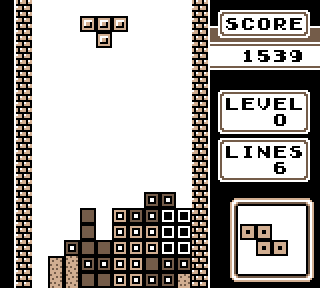
I am almost certain that Tetris software is not only cognizant, but I swear that it's also sentient. There are many times when sequences of pieces cannot possibly be part of any random combination
  • Every once in a while it'll throw me a bone and send a few good pieces my way when I get out of a particularly difficult situation
  • It teases me after level 12 by sending groups of I-pieces () - almost to say, "Ha! Bet you didn't expect these NOW!"
  • It knows it's time for bed and starts sending ridiculous sequences of only S and Z pieces ( ) when I've been waiting patiently for an I and there are no good locations for such pieces

I am also beginning to suffer from the Tetris Effect - where one begins to see shapes and attempt to solve lines, away from the game. The first time I had this happen was when I played a lot of competitive The Next Tetris with some friends back in high school.